Michael's notes on installing Fiji (Fiji Is Just ImageJ)
Installation is just copying a folder containing a bunch of files to your computer. It's this simple. You can even keep it on a USB key to run it anywhere USB drives work.
Unless you have full administrative permissions, do not install in the Programs Files directory or Applications (on Mac, which may randomize the files which would prevent updating). Also, we recommend do not install on desktop, especially if your computer has a home drive on a network, unless you specifically want to be able to access from any computer anywhere.
I like to keep the Fiji folder in root drive C: so that the cloud does not see it, so that it is always on my computer.
If you put Fiji in a location which gets pushed to the cloud, set the entire Fiji folder to always reside on your computer.
You may find it convenient to keep it in your documents folder. If you are on a network, make sure this is the local documents folder (unless you specifically want it on the network, but then you might not be able to run it when you don't have an internet connection).
To install
Download at https://imagej.net/software/fiji/
Troubleshooting: Our IT department prevents downloading executable files with Chrome. But we can get this to work with Edge, Firefox, and Safari.
Move the Fiji folder from the downloads folder to the location where you want to keep it.
Optional: put shortcuts to the Fiji executable app file on the desktop, favorites, taskbar, etc. (On my computer, this is file named fiji-windows-x64.exe)
First time you run Fiji, it may ask you to update. I select no and do not remind again.
(You may opt differently.)
This is not important. The next step is essential.
Help > Update ImageJ... > Upgrade to: daily build [click here for more details]
Edit > Options > Memory & Threads... > Set for memory allocated to IJ images, this is going to vary widely depending on the sizes of your images and the computer you have. I have it set to 12000 on my SurfacePro with 16 GB of RAM.
At minimum, this is best 2x or more the size of the largest dataset you try to work with.
Check the box Run garbage collection on status bar click.
The quit and restart.
Optional: If you have a package of favorite macros, put them in the macros directory and rename the file "StartupMacros.ijm". This way, they will automatically load at startup. I do this with the macros at MC_macros.ijm so that my most used macros & functions automatically load.
Some additional info
ImageJ with Bio-Formats plugin opens raw data as they appear in the original software with the benefit of preserving the underlying raw data. This is possible because of the Bio-Formats plugins which sometimes need to be updated or rolled back manually.
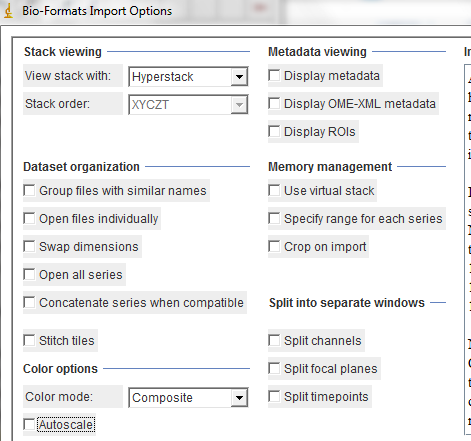
With Hyperstack and Composite selected in the top left and bottom left of the import settings menu, raw data from most commonly used microscopes will open properly. (For most uses, Split Channels should NOT be checked.)
The Autoscale button is convenient and optional. It does not change the raw data but rescales each channel's display linearly.
The version of ImageJ running on my personal computer opens files from Zeiss Zen and Nikon Elements as they displayed originally (when you choose Hyperstack and Composite in the menu).
Click here for a webpage primer on working with channels.
There are also ways of changing the colors and contrast uniformly across datasets.
Let's say you have a directory with 37 images that were taken exactly the same way and you want them all output as a montage of each channel with a merged image and a scalebar on each one in a format you could paste into PowerPoint. Instead of processing each one manually, why not use a macro that will process the entire directory for you? We can modify this macro to do automated tasks such as this as you need them.
Or let's say you have all nuclei in one channel stained with dapi (blue) or DRAQ5 (far-red) and you want to know the intensity of histones in the nuclei stained with Alexa488 (green) and in a different channel the protein levels for each nucleus immediately outside the nucleus stained with Cy3 (red). This may be automated.
Furthermore, let's say you need to manually outline different regions and have the counts described above reported separately per region. ImageJ can do this too and label them, such as reporting independently for "White Pulp", "Red Pulp", and "Marginal Zone".
Other plugins you may find useful are at https://imagej.net/ij/plugins/index.html.
https://fiji.sc/ is another great resource.
If you want to write macros, this is an invaluable site: https://wsr.imagej.net/developer/macro/functions.html
We are (slowly) building a library of macros here too. Please ask us for what you need and we may have code for it.
Want to know more about the history of ImageJ and how it is pioneering in the field of image analysis, way ahead of commercial products? Read this article in Nature Methods.
Earlier versions of this page:
2018
2020 with updates through 2023
![click here for more details]](update_imagej_in_menu.png)